For connected AI clients
Video background removal MCP
Give your assistant video background removal tools. Connect once, approve the cost and let it retrieve a transparent video for your next edit.
Remote HTTP · Google sign-in · OAuth authorization
Your remote server
Connect to VideoBGRemover
https://videobgremover.net/api/mcpPaste this address into your client’s remote MCP settings. Sign in on VideoBGRemover when prompted; an API key is not needed for this connection.
Actual processed output
A video tool that returns a video.
This eight-second recording was imported and processed through the remote MCP tools. Change the preview backdrop to inspect the alpha channel; the downloaded file keeps its transparency.
Eight-second HTTPS import example. Processing used eight credits once. Subject edges can be softer than the original; review your own result.
Download exampleConnection guide
One connection. Your existing account.
Choose the footage and describe the result you want. The assistant uses the available tools while your VideoBGRemover account controls access and spending. You can review or remove that access without editing client configuration files.
Remove the background from the video URL I provide. Check the estimated credits first and ask me to approve the cost. Return a transparent WebM download.- Add the remote server
In your client’s MCP connection settings, choose a remote HTTP server and paste the URL above. The server is hosted; there is no local package to install.
- Sign in and choose a budget
Complete Google sign-in on VideoBGRemover, review the requested permissions and set a connection credit ceiling. You can adjust that budget or revoke access later.
- Give your assistant a video
Provide a reachable HTTPS video URL, or use the client’s file tools to upload. Ask the assistant to check the estimated cost, obtain your approval and return the completed download.
11 available tools
From source footage to a download.
Each tool has a specific job. Your assistant can check the account before starting, prepare the input, follow progress and retrieve the completed file.
Check the account
get_accountRead available credits, the connection budget and the current video limits before choosing a clip.
Prepare footage
import_video · create_upload · get_upload_part · complete_upload · get_upload · delete_uploadImport a link or prepare a direct upload. Confirm that media validation is complete before processing.
Process and retrieve
remove_video_background · get_job · cancel_job · get_downloadSubmit an approved task, check progress, cancel while queued or obtain a signed download once it completes.
You control the connection
Approve the spend before processing.
Every processing request needs a maximum credit cost. The connection also has a total spending ceiling, so an assistant cannot consume more than the allowance you set. Your account balance is still the source of those credits.
Use a zero-credit connection for reads, raise its budget when you are ready to process, or revoke it in settings. An authorized connection can manage only your account’s uploads and tasks.
Manage budgets and connections →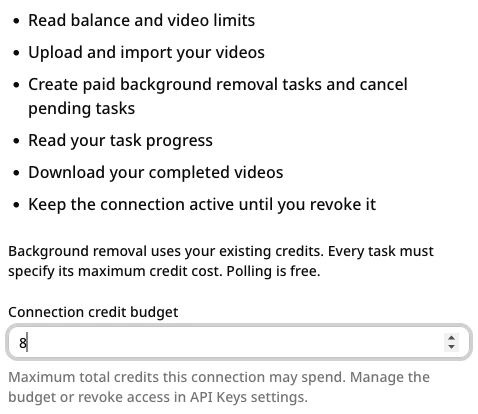
Supported video contract
| Input files | MP4, MOV or WebM |
|---|---|
| Video codecs | H.264, HEVC or VP9 |
| Resolution | Up to 1080p, portrait supported |
| Frame rate | Up to 30 fps |
| Clip duration | Trial: 30 seconds; paid: up to 5 minutes, subject to entitlement |
| Transparent output | VP9 WebM, with source audio when present |
These are API/MCP limits. The website editor has its own upload and export choices.
Before you connect
MCP questions, answered.
What does my AI client need to support?
Use a client that supports a remote HTTP MCP server and OAuth authorization. Add the endpoint below, then complete the Google sign-in and permission screen in your browser. Client plans and organization policies can restrict remote servers or write tools. We have verified the official MCP SDK flow; availability in an individual AI application depends on that client.
Can my assistant read a local file or chat attachment?
A local path is not a downloadable video URL. A client with file and HTTP tools can obtain a signed upload plan and upload the bytes. Otherwise, provide a public HTTPS MP4, MOV or WebM URL. A chat attachment only works when the client can expose a reachable URL or upload it using its own file tools. No attachment access is assumed by the server.
Does revoking access cancel a running task?
Revocation invalidates existing access and refresh tokens immediately, but already running video processing can still finish. Use cancel_job while a task is queued if you want to stop it before processing starts; running tasks cannot be canceled. Reconnecting requires a fresh browser authorization. Revocation does not undo completed processing or its settled credit charge.
Can I leave the conversation while the video runs?
Yes. The task is saved under your account and the assistant can retrieve it later with get_job. Polling does not use processing credits. Save a completed file within seven days. Download links expire after ten minutes, so ask for another link if the first expires while the result is still retained.
Should I connect MCP or use an API key?
Use MCP when an assistant should choose and call video tools through a conversation. Use the REST API when your application or script controls requests directly. MCP signs in through OAuth; the REST API authenticates with an API key. Both use the same credits and account task limit, so you do not need separate video processing accounts.
Make your next edit a conversation.
Copy the server URL, sign in and set the budget you want.