VideoBGRemover
  • Pricing
VideoBGRemover

Remove the setting. Keep the moment.

support@videobgremover.net
Product
  • Create Transparent Video
  • Green Screen Removal
  • Chroma Key Remover
  • GIF Background Remover
  • Blog
  • Pricing
Legal
  • Cookie Policy
  • Privacy Policy
  • Terms of Service
© 2026 VideoBGRemover. All Rights Reserved.

COLOR-BASED VIDEO EDITING

Chroma key remover.
You choose what disappears.

Pick a background color, adjust the edges and turn your clip into a transparent overlay. Keep control of the key from the first preview to the final file.

Green, blue or a custom colorOriginal audio retainedTransparent video export
1Upload
2Remove
3Download
Private upload · audio preserved · preview before download

MP4, MOV or WebM · selected clips up to 10 seconds · up to 1080p, landscape or portrait. Preview locally; sign in to upload and render using account credits. Rendering uses 1 credit per started second.

01 / SELECT

Start with the useful moment

Choose your video and use the timeline to select one continuous clip. A short section lets you inspect movement before committing to an export.

02 / ADJUST

Sample the actual backdrop

Pause on a clear frame and pick the screen color. Raise tolerance gradually, then soften the boundary only as much as the footage needs.

03 / EXPORT

Check the moving result

Render your settings, play the completed clip and inspect the edges. Download transparency or composite the result over a color or image.

SAME CLIP, BEFORE AND AFTER

See what the chroma key remover changes

A three-second animated clip with a uniform green background, processed with key color #00D700, 22% tolerance and 10% softness. Play both clips to inspect the fingers and moving outline.

The green becomes transparent while the character stays visible. This clean animation is a good fit for color keying; live-action hair, shadows and reflected green can need more work.

Animation: PhamXuanThuy on Pixabay. Cropped and processed for this demonstration; no endorsement implied.
Original
Color key applied

THE KEY IS IN THE DETAILS

A chroma key remover with controls you can see

Small adjustments have different jobs. Start with the background fully removed, then check how much of the subject remains.

Key color: match the footage

A recorded green screen rarely matches pure green exactly. Sample a representative patch near the subject, avoiding deep shadows and bright highlights. The color input also accepts a precise choice when you already know it.

Tolerance: widen the removed range

Higher tolerance catches more shades of the selected color. It can clear uneven lighting, but it can also cut into clothes or props. Stop increasing it when the screen clears; inspect fingers and narrow details next.

Softness: ease the boundary

A modest transition can reduce harsh cutout edges. Too much makes the subject translucent. Compare against light and dark preview backgrounds to spot halos that a checkerboard alone can hide.
CHOOSE THE RIGHT METHOD

Color key for a controlled backdrop. AI for a busy scene.

This chroma key remover works by color, so it can preserve a presenter, product, animated graphic or other subject without deciding what the object is. The best starting point is a uniform background with a clear color difference from everything you want to keep.

A room, outdoor scene or patterned wall usually needs subject separation instead. Our AI video background remover handles that different task. The automatic green screen removal page is another entry to the same AI workflow.

For motion blur, transparent glass and fine hair, judge the actual clip. Neither a higher slider value nor a different tool guarantees a clean result on every frame.

OUTPUT FILES

Export from the chroma key remover

Choose according to where the clip goes next. A transparent file and a finished background composite serve different purposes.

WEBM

A moving transparent overlay

The main download keeps an alpha channel and source audio. Use it on websites or in editors that support VP9 transparency. Check playback in the actual destination before publishing.

MOV

A file for post-production

ProRes 4444 is available for eligible clips within the 10-second, 1080p limit. It keeps transparency and audio in a larger editing file. Ordinary video players may not display its alpha correctly.

MP4

A finished background composite

Add a solid color or your own static image after processing. This MP4 has the chosen background baked in; it is not a transparent download. See the transparent video guide for format choices.

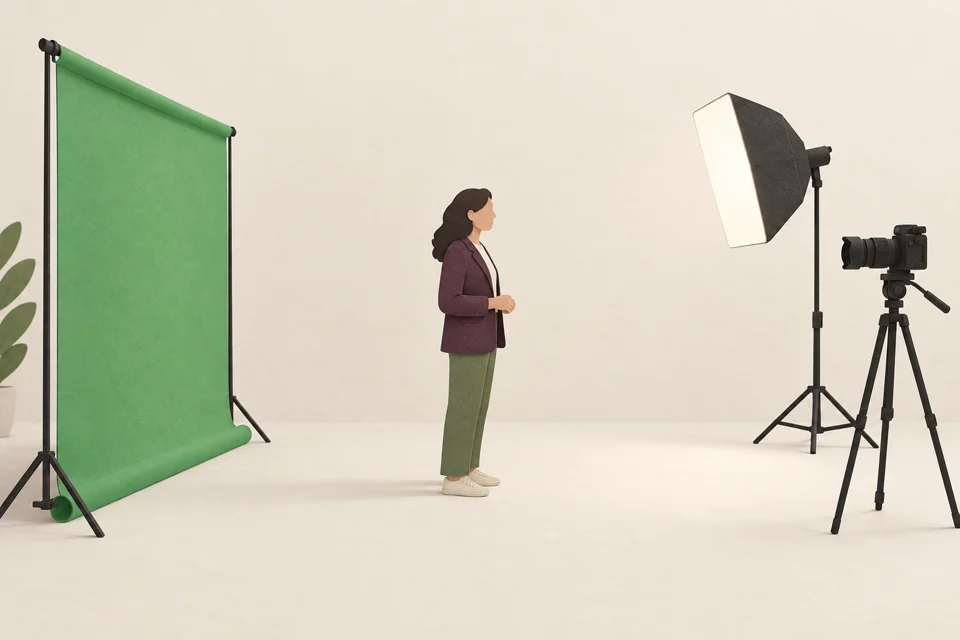
Illustration of a presenter standing away from a green backdrop with a separate light and camera

BETTER INPUT, CLEANER EDGES

Leave room between the subject and the screen

A chroma key remover has less to fight when the backdrop is evenly lit. Keep the subject away from the screen to reduce colored reflections, and light them separately. Avoid clothing and props close to your key color.

If the shot is already recorded, inspect a moving section with hands, hair and shadows. A clean still frame can hide edge flicker later in the clip.

BEFORE YOUR NEXT EDIT

Chroma key remover questions

Why does the downloaded video look black in another player?

Some players display transparent pixels over black instead of a checkerboard. That does not necessarily mean the background is baked in. Import the WebM into an editor that supports VP9 alpha and place it above a colored layer. If the color shows through, transparency is intact. Use ProRes 4444 when your editing workflow supports that format instead.

Can this chroma key remover rescue green clothing?

A color key cannot tell the difference between the screen and clothing with the same color. Both can become transparent. Lowering tolerance may help when the shades differ, but it cannot recover identical colors. Reshoot with a contrasting backdrop, use a manual mask in an editor, or try the AI background remover.

Does changing the preview use credits?

Picking colors, moving sliders and playing the local draft do not start a processing job. Rendering uploads the selected video and uses your account credits. A new render is a new job; check the draft first. Failed processing returns reserved credits. Downloading the completed result does not start another background-removal job.

Can I remove a background from a GIF here?

This page takes video files. Use the dedicated GIF background remover for animated GIF input and GIF downloads. Converting a video to GIF before keying throws away audio and limits color detail, so keep the original video when you need a moving overlay with sound. Open the GIF tool.

Does edge softness remove green spill?

No. Softness changes the transition between transparent and visible pixels. Green or blue light reflected onto hair and skin is a color problem. This version has no separate spill-suppression control. For demanding footage, correct spill in a video editor after exporting, or improve the lighting and distance from the screen before recording.

Put your own clip to the test

Use the chroma key remover above to check the background color and moving edges before rendering.

Choose a video ↑