Use the clip you already recorded
Upload an MP4, MOV, or WebM. You do not need a green screen or a frame-by-frame mask.
Transparent video maker
Create transparent video from a clip you already have. Upload an MP4, MOV, or WebM, remove the scene behind the subject, and watch the full result before choosing WebM or eligible ProRes 4444 MOV.
Upload an MP4, MOV, or WebM. You do not need a green screen or a frame-by-frame mask.
Background removal keeps the moving subject and source audio together in the finished transparent file.
Play the result over a checkerboard or a new backdrop. Check hair, hands, and fast movement across the whole clip.
One upload, three steps
Upload once and stay in one place. Trim the clip, run background removal, and inspect the result before you download it.
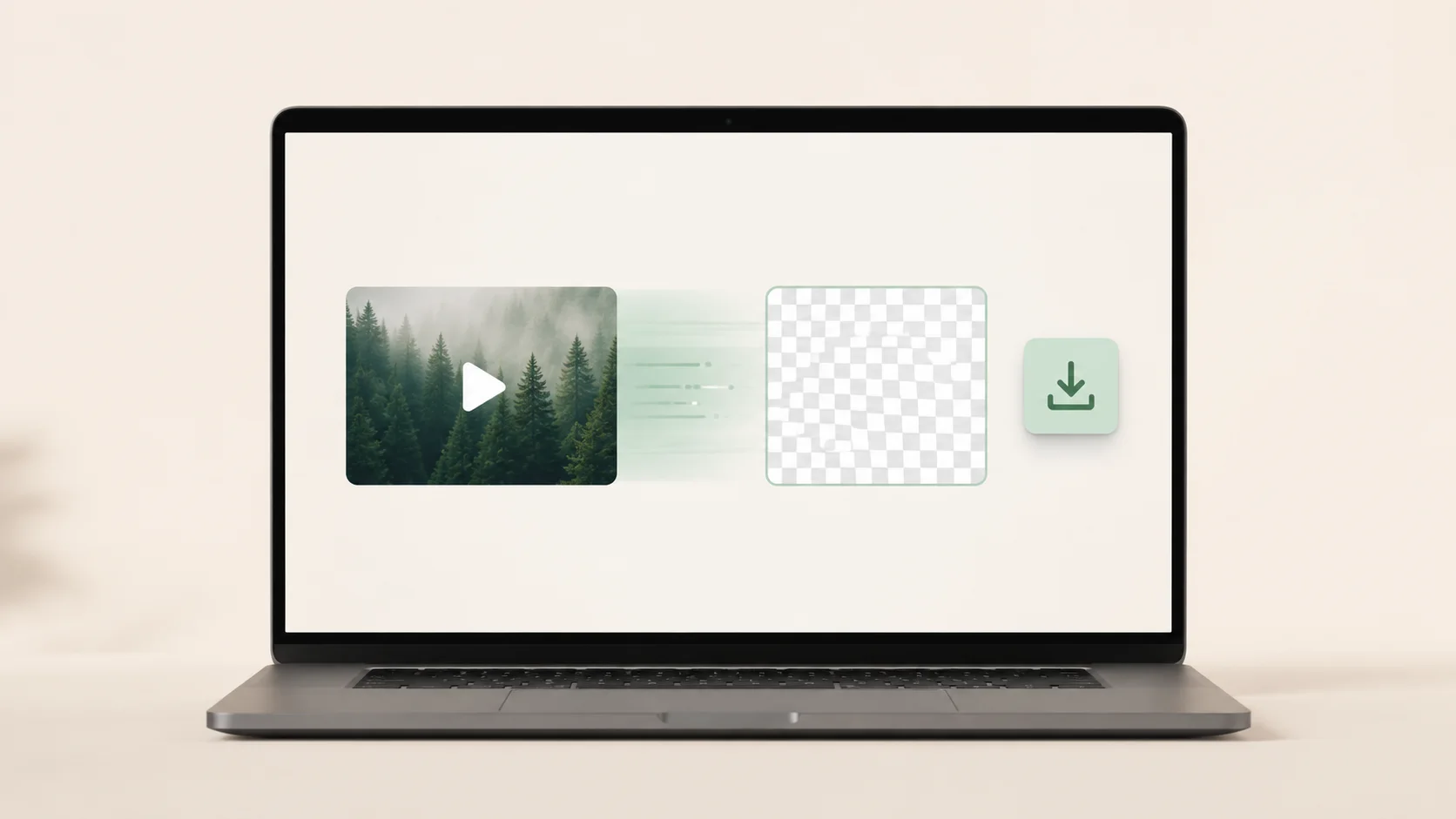
Choose an MP4, MOV, or WebM. Keep the full clip or trim it down before processing starts.
Once the clip is ready, start the job. You can leave the page and return with the same account when it finishes.
Watch the transparent result first. Download WebM, choose eligible ProRes MOV, or add a backdrop and export MP4.
Real processed output
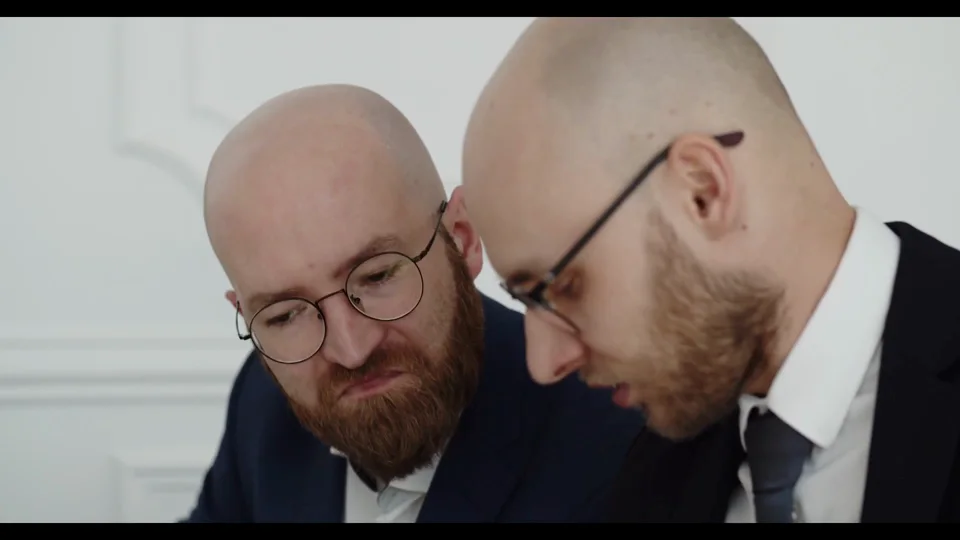
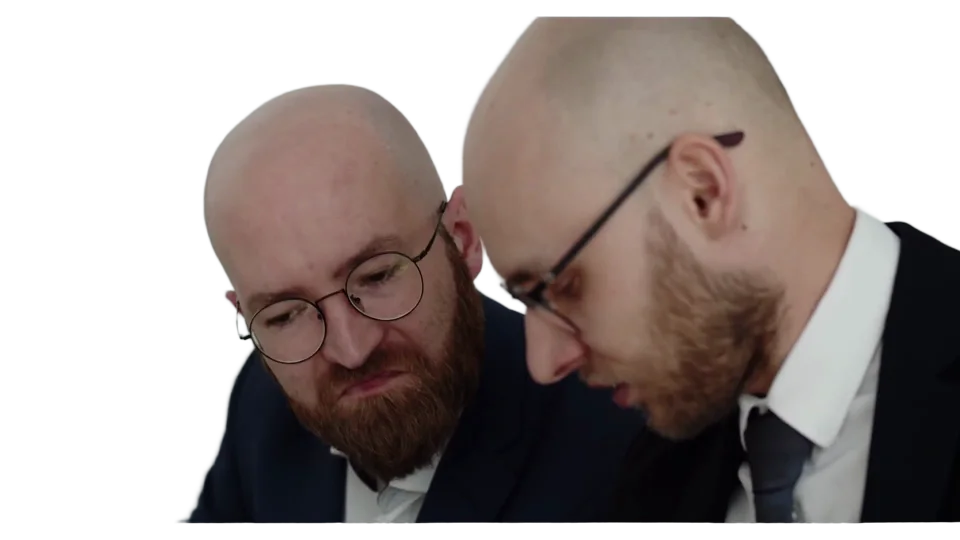
These frames come from the same clip. The checkerboard on the right marks the pixels that were removed. Play the full result before downloading; a clean frame can still hide motion problems.
What you are downloading
Create transparent video when you want the moving subject as a layer of its own. Put a website, graphic, or another scene behind it later.

The person or object remains a video layer. The room, wall, or outdoor scene behind it becomes clear, so another design can sit underneath without running background removal again.
It marks clear pixels on this page. It is not written into the transparent WebM or ProRes MOV. If another player shows black instead, that player may not support the file’s alpha channel.
Alpha support varies by browser, editor, CMS, and publishing platform. Try a short result in the final destination before processing a larger project or building a layout around the file.
Choose by where it goes next
Keep transparency with WebM or eligible ProRes MOV. Choose MP4 when you want to add a color or still image before downloading.
Choose WebM when the next stop is a website, browser, or editor that supports VP9 alpha. The clear area stays transparent, which makes the file useful for page overlays, browser animation, and compatible motion tools.
Best default for alphaTaking the clip into a post-production tool that accepts ProRes 4444? Selected clips up to 10 seconds and 1080p keep alpha and audio. Expect a larger editing file rather than a format built for universal playback.
Eligible clips onlyUse MP4 when you no longer need transparency. Pick a color or upload a JPG, PNG, or WebP; that background becomes part of the file. MP4 plays in more places, but the chosen backdrop can no longer be swapped as a separate layer.
Change a video background onlineColor or static imageOne cutout, more than one layout
Create transparent video for a presenter, demonstration, or campaign once, then change the design around the subject without shooting the performance again.

The speaker can sit next to product copy or an interface while the recorded room stays out of the layout.
Keep the demonstration and voice, then place them over updated screenshots or a new branded layout.
Bring in the isolated subject, then add the typography, footage, or setting the final edit needs.
One transparent subject can sit over different colors and still images while the performance stays the same.
Before you download
Hair, hands, reflections, and quick movement can change from frame to frame. Play the result through once, then test the file where you plan to use it.
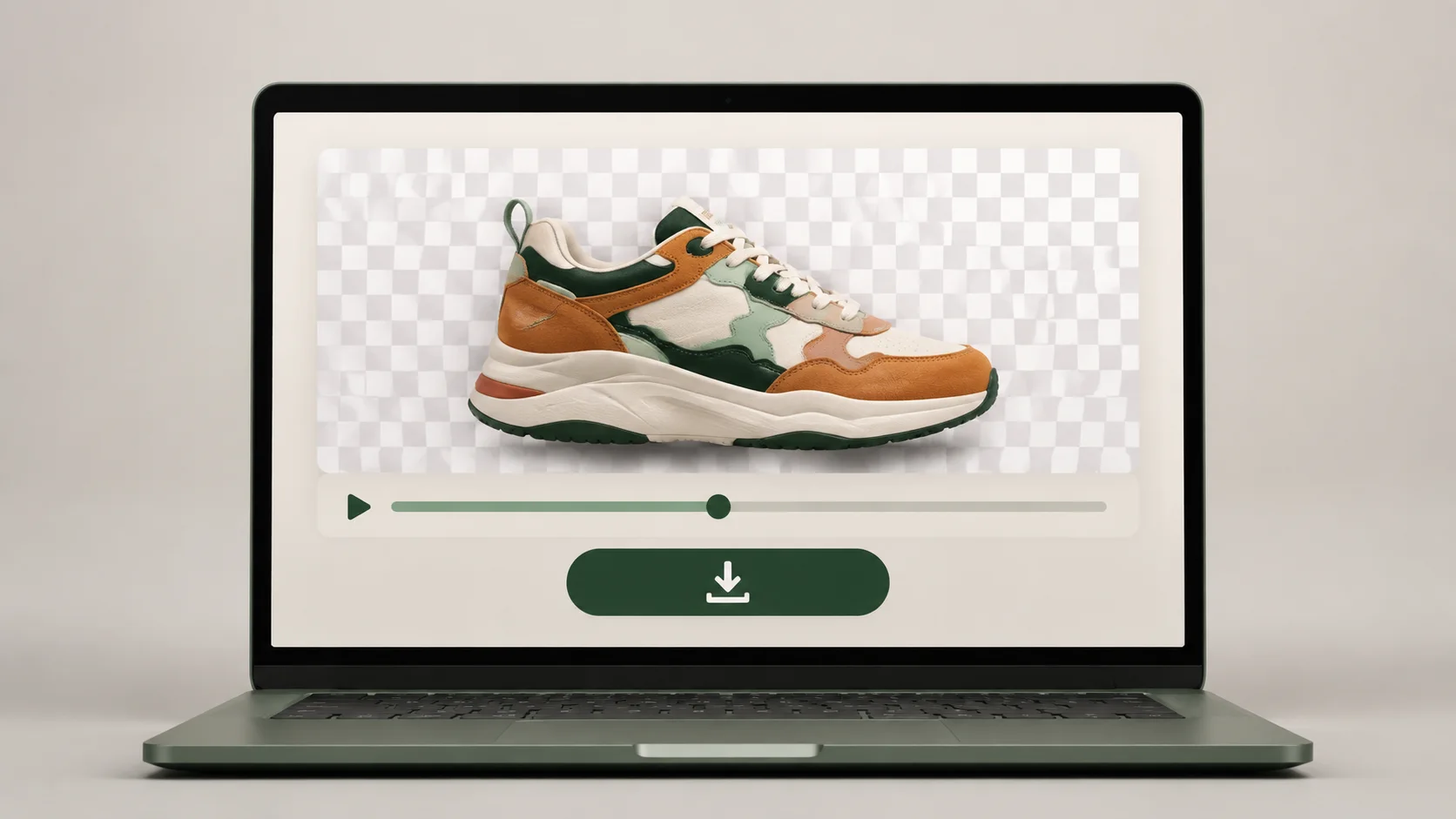
Use the full preview to catch edge changes that one still frame can miss.
Choose footage where the subject is easy to distinguish from the room or scenery behind it.
Fast motion, reflections, transparent objects, and fine moving details deserve a closer look in the preview.
Watch hair, hands, product edges, turns, and quick movement through the full result.
Import or play a short result in the actual browser, editor, CMS, or publishing path before committing to a longer clip.
FAQ
Quick answers about formats, audio, playback, and getting a cleaner result.
Upload an MP4, MOV, or WebM, select the section you need, and start background removal. When processing finishes, review the subject over a checkerboard and download the transparent WebM or an eligible ProRes 4444 MOV.
A transparent video stores an alpha channel alongside its color information. That alpha channel identifies clear and visible areas, allowing the subject to appear over another compatible background.
Yes. The tool is designed to separate a clearly visible subject from ordinary room, office, studio, and outdoor backgrounds. A green screen is optional.
Transparent WebM is the primary download. Eligible selected clips up to 10 seconds and 1080p can also be exported as ProRes 4444 MOV for compatible post-production workflows.
No. This product uses WebM or eligible ProRes MOV for transparency. Its MP4 export contains a solid color or static image background that has already been composited into the video.
Yes. Expected source audio is preserved in the transparent WebM and eligible ProRes MOV, and the completed transparent master is checked before it is marked ready.
No format has universal alpha-video support. Check whether your target browser, editor, CMS, or publishing platform accepts WebM alpha or ProRes 4444 MOV before choosing the final format.
Use footage with a clearly visible subject, useful contrast, stable lighting, and limited motion blur. Then play the full preview and inspect fine edges, reflections, transparent objects, and fast movement before downloading.
Start with your clip
Your clip is the best test. Use it to create transparent video, watch the full result, and download the format that works in your project.
Choose a video